Getting Started with WayPresenter
Welcome to WayPresenter
This tutorial walks you through everything you need to know to get WayPresenter up and running for your first church service. By the end, you'll be confident using the core features.
What You'll Learn
- Installing WayPresenter on your computer
- Configuring audio and display settings
- Adding songs to your library
- Using AI scripture detection
- Running your first live service
Step 1: Installation
Download WayPresenter from the download page for your operating system. The installation takes less than 5 minutes on most systems.
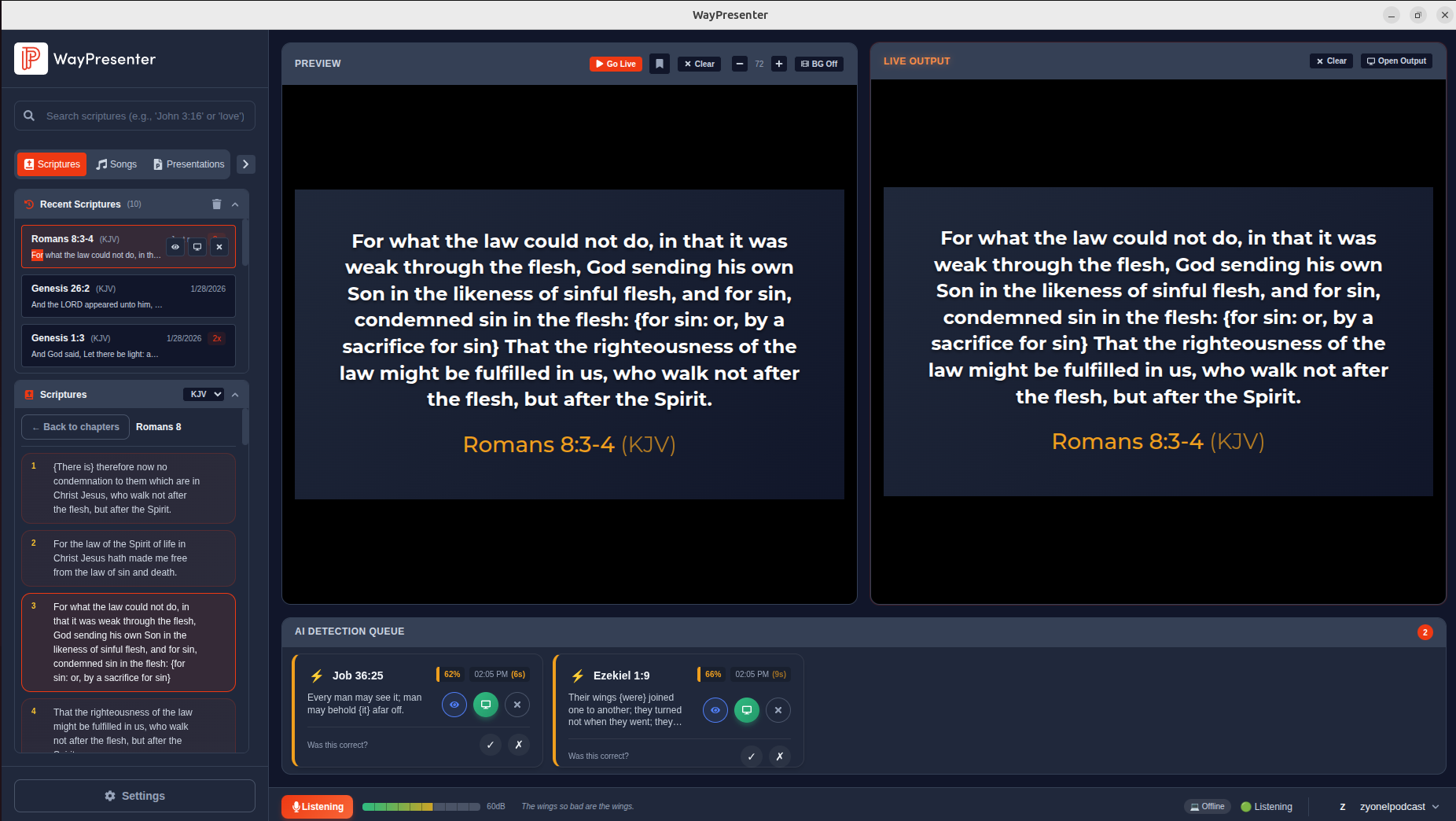
After installation, launch WayPresenter and you'll see the onboarding wizard. Once setup is complete, the main interface looks like this:
Step 2: Audio Setup
For AI scripture detection to work, you need an audio source:
- Connect your audio source (soundboard, microphone, or use system audio)
- In the onboarding wizard, select your audio device
- Speak a test phrase and verify the audio meter responds
- Adjust the gain until speech hits the green zone
Pro tip: A direct soundboard feed gives the best accuracy. If that's not available, a USB microphone positioned 2-4 feet from the speaker works well.
Step 3: Display Configuration
- Connect your projector or secondary monitor
- WayPresenter auto-detects available displays
- Select the display for your audience output
- Choose your preferred resolution
Step 4: Add Your First Song
- Click the + button in the Songs panel
- Enter the song title and author
- Paste or type the lyrics
- Use section tags like
[Verse 1],[Chorus],[Bridge] - Click Save
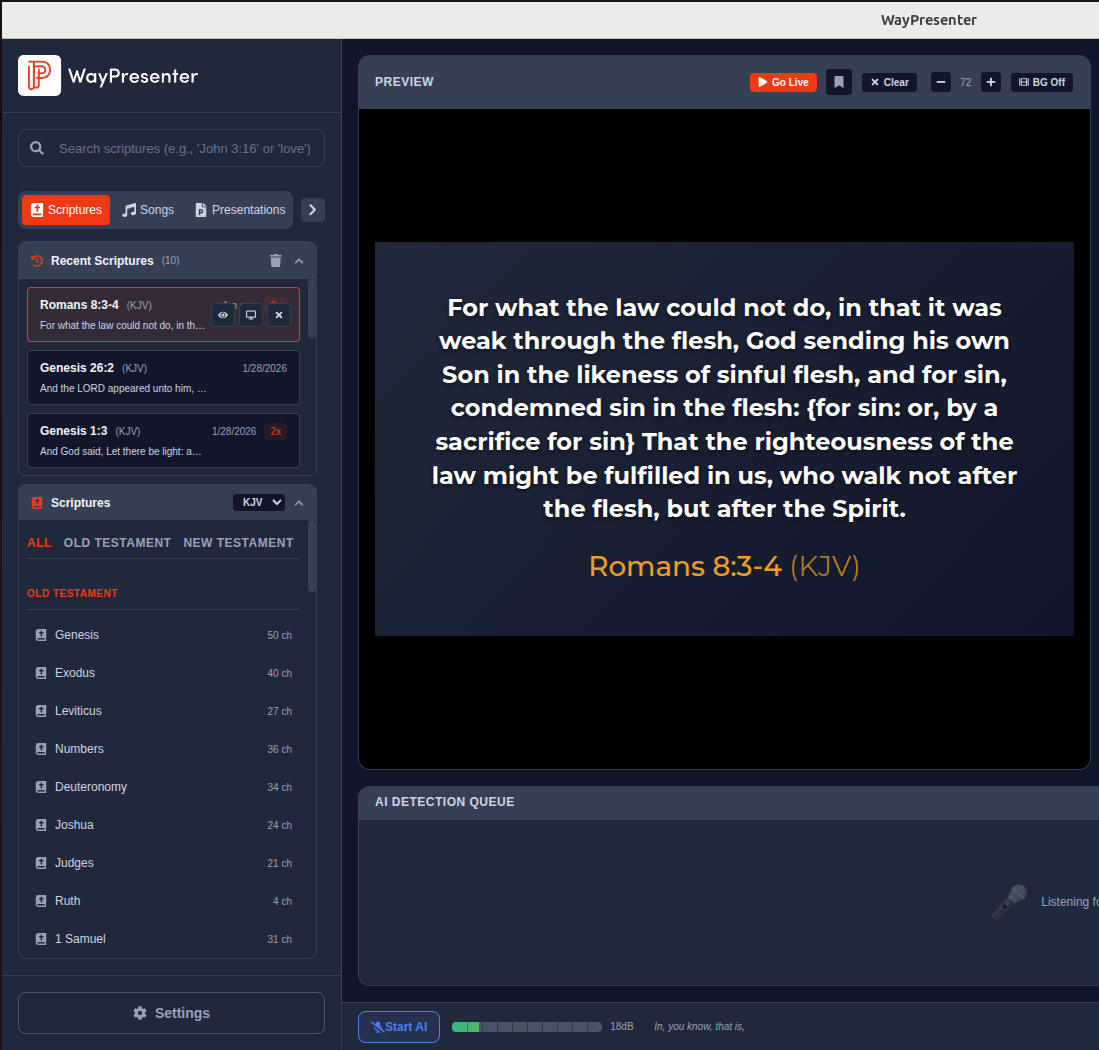
Step 5: Display a Scripture
- Click the Bible tab
- Type "John 3:16" in the search box
- Select your translation
- Click Go Live to display it
Step 6: Enable AI Detection
- Click the AI button in the toolbar
- The AI indicator turns green when listening
- As scriptures are mentioned, they appear in the queue
- Click any detection to send it live
Step 7: Practice Run
Before your first service:
- Test audio levels with someone speaking at the pulpit
- Verify the display looks good from the back of the room
- Practice switching between songs and scriptures
- Test AI detection with a few verse references
You're Ready!
With these basics covered, you're prepared to run WayPresenter during a live service. For more advanced features, explore our documentation.