Setting Up AI Scripture Detection
Overview
WayPresenter's AI scripture detection listens to your pastor's sermon in real-time and automatically identifies Bible references. This tutorial covers how to set it up for maximum accuracy.
Prerequisites
- WayPresenter installed and running
- An audio source connected (soundboard, microphone, or system audio)
- Basic familiarity with the WayPresenter interface
Step 1: Choose Your Audio Source
The quality of your audio source directly impacts detection accuracy:
| Source | Accuracy | Setup Difficulty |
|---|---|---|
| Direct soundboard | 90-95% | Medium |
| USB microphone | 80-90% | Easy |
| System audio | 75-85% | Easy |
Connecting a Soundboard
- Use an auxiliary output from your mixer
- Connect via 3.5mm, USB audio interface, or XLR-to-USB adapter
- Set the output to line level
Using a Microphone
- Place the mic 2-4 feet from the speaker
- Point it toward the pulpit
- Avoid placing it near loudspeakers
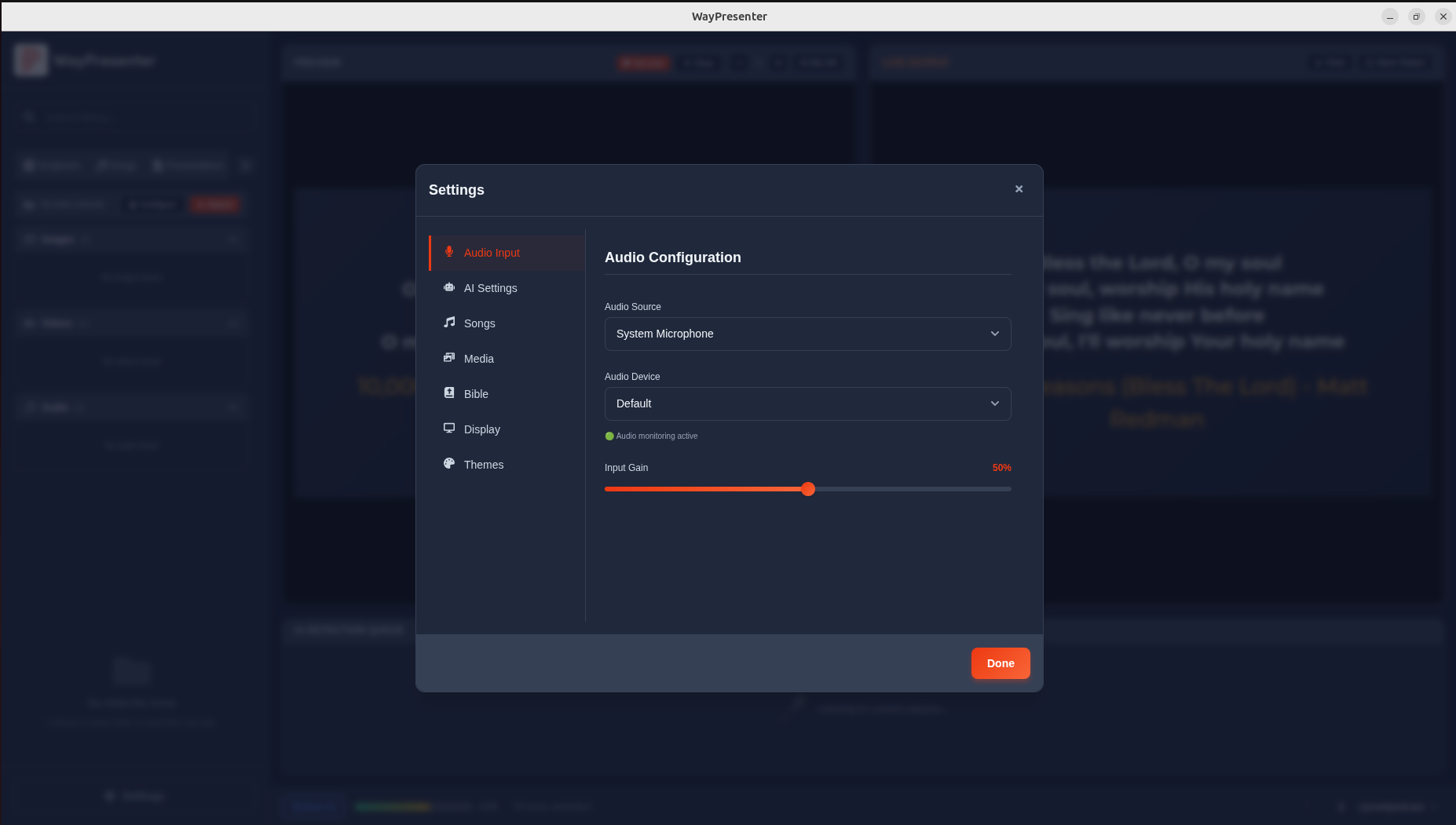
Step 2: Configure Audio in WayPresenter
- Open Settings > Audio
- Select your input device from the dropdown
- Adjust the gain: speak normally and aim for consistent green on the meter
- Enable Noise Gate if there's persistent background noise
- Click Test to verify detection works
Step 3: Adjust AI Settings
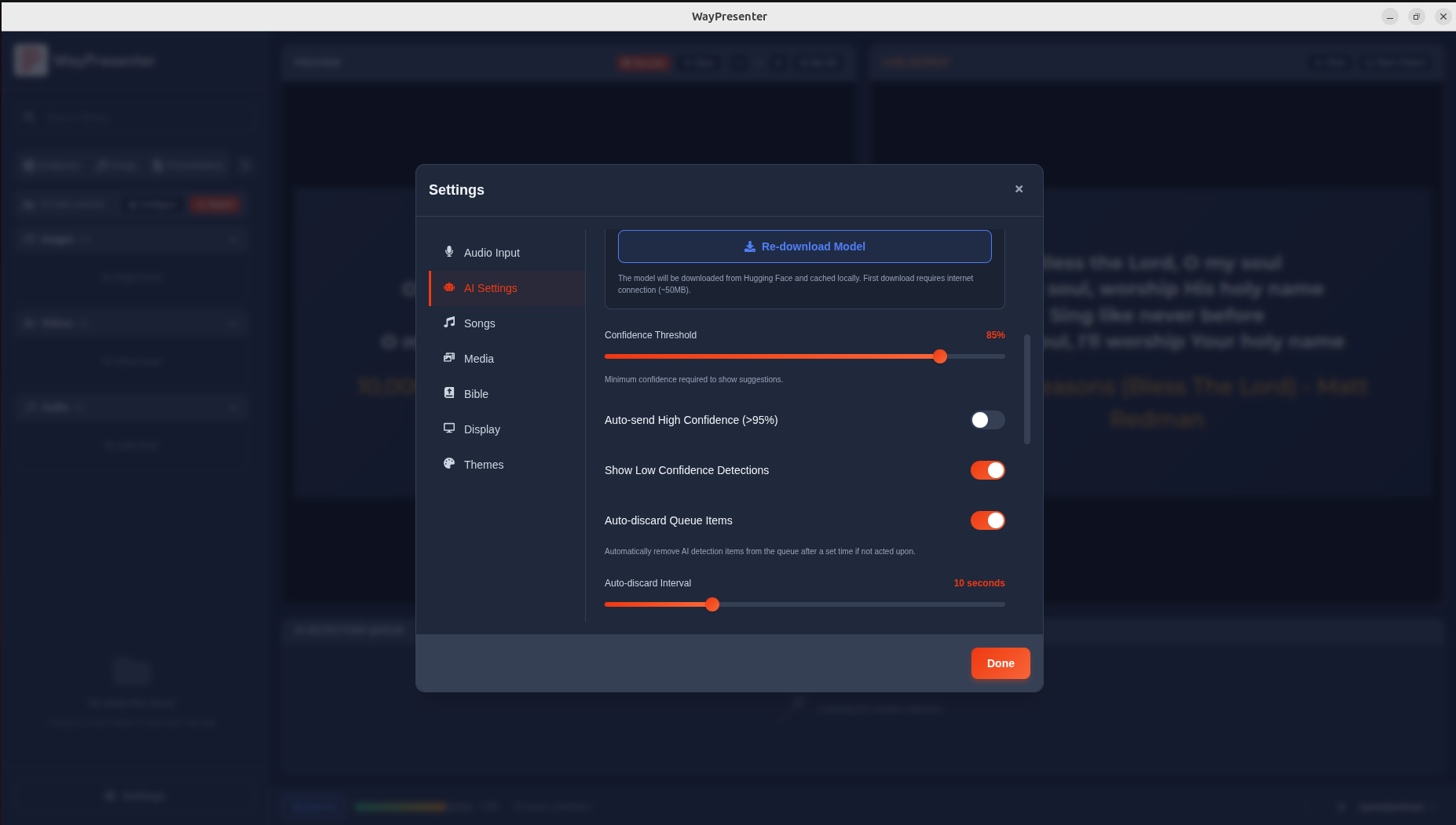
- Go to Settings > AI Detection
- Model Quality: Start with "Balanced" — switch to "Accurate" if you have a powerful computer
- Sensitivity: Medium is a good default
- Confidence threshold: Set to 85% to start — lower it if the AI misses references, raise it if you get false detections
Step 4: Train the System
WayPresenter improves over time with feedback:
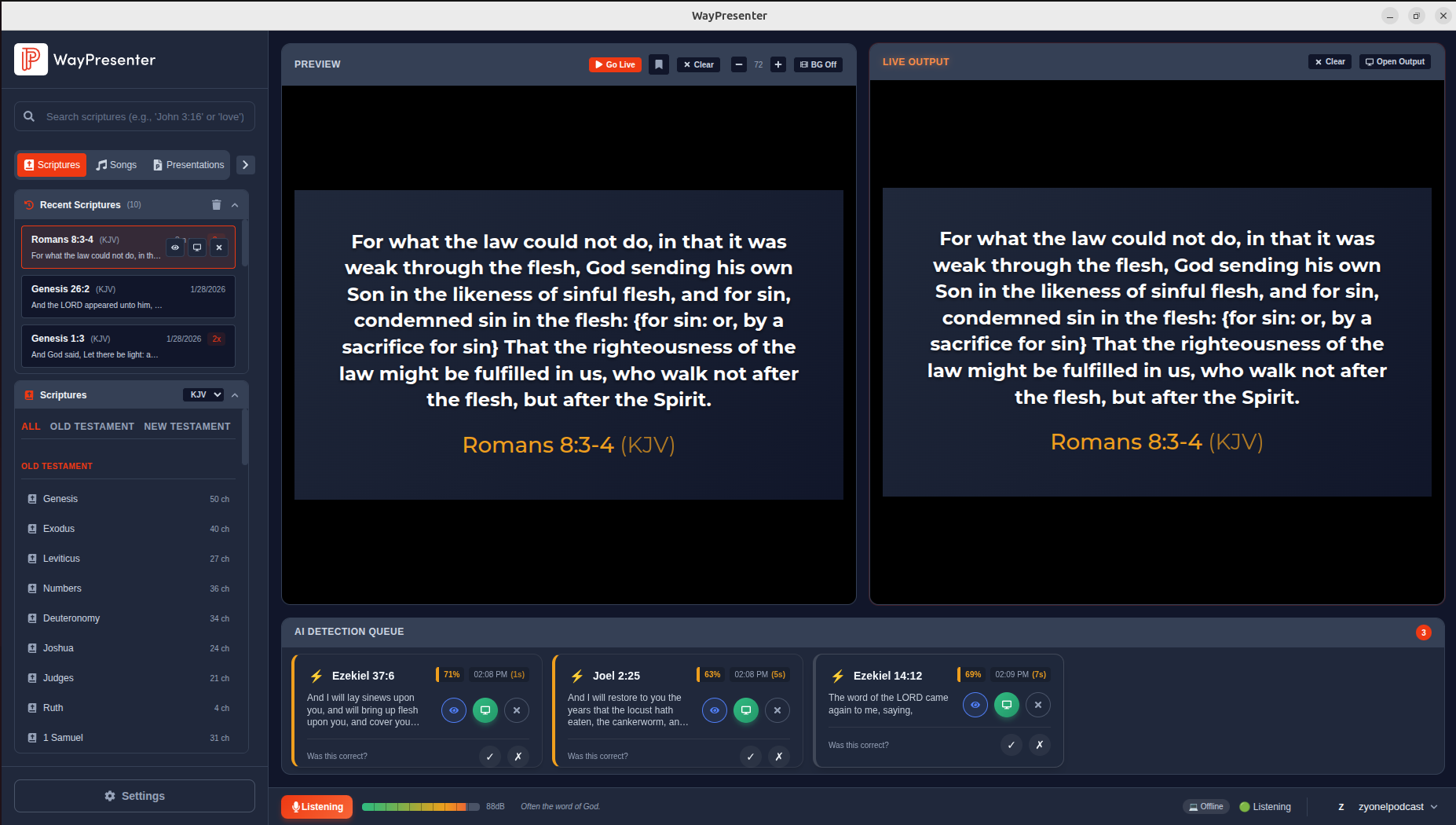
- When the AI correctly identifies a verse, click the checkmark
- When it makes a mistake, click the X and correct it
- Over several services, accuracy will improve for your specific environment
Step 5: Test During Practice
- Enable AI detection
- Have someone read several Bible references at normal speaking pace
- Observe the detection queue — note the confidence scores
- Adjust settings based on results
Troubleshooting
- No detections appearing: Check audio input and levels
- Many false positives: Increase confidence threshold or lower sensitivity
- Missed references: Lower confidence threshold, check audio quality
- Slow detections: Switch to "Fast" model quality
Tips for Best Results
- Ensure the speaker states references clearly (e.g., "John chapter 3, verse 16")
- Minimize background music during the sermon
- Keep the audio meter in the green zone
- Let the AI learn over 3-4 services before judging accuracy