Settings Reference
Settings Overview
Access settings via Settings (gear icon) or Ctrl/Cmd + ,. This reference covers every available option.
General Settings
Application
- Language: Interface language (English, Spanish, Portuguese, Korean)
- Start on boot: Automatically launch WayPresenter when your computer starts
- Check for updates: Automatically check for new versions
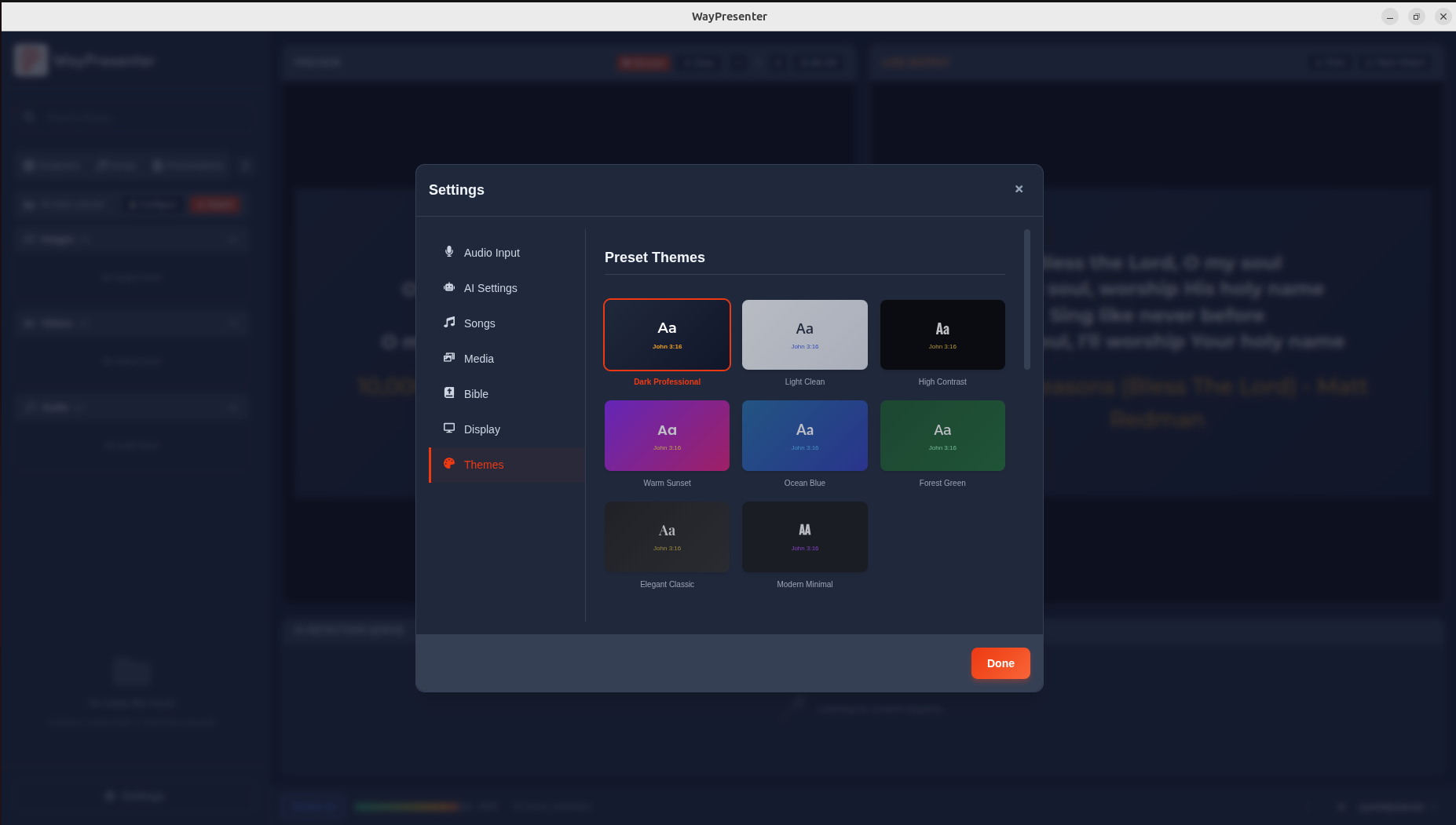
- Theme: Light, Dark, or System default
Display
- Output display: Select which monitor to use for presentation output
- Preview quality: Low, Medium, or High (affects performance)
- Output resolution: Match display, 1080p, or 4K
- Show stage display: Enable a separate confidence monitor view
Audio Settings
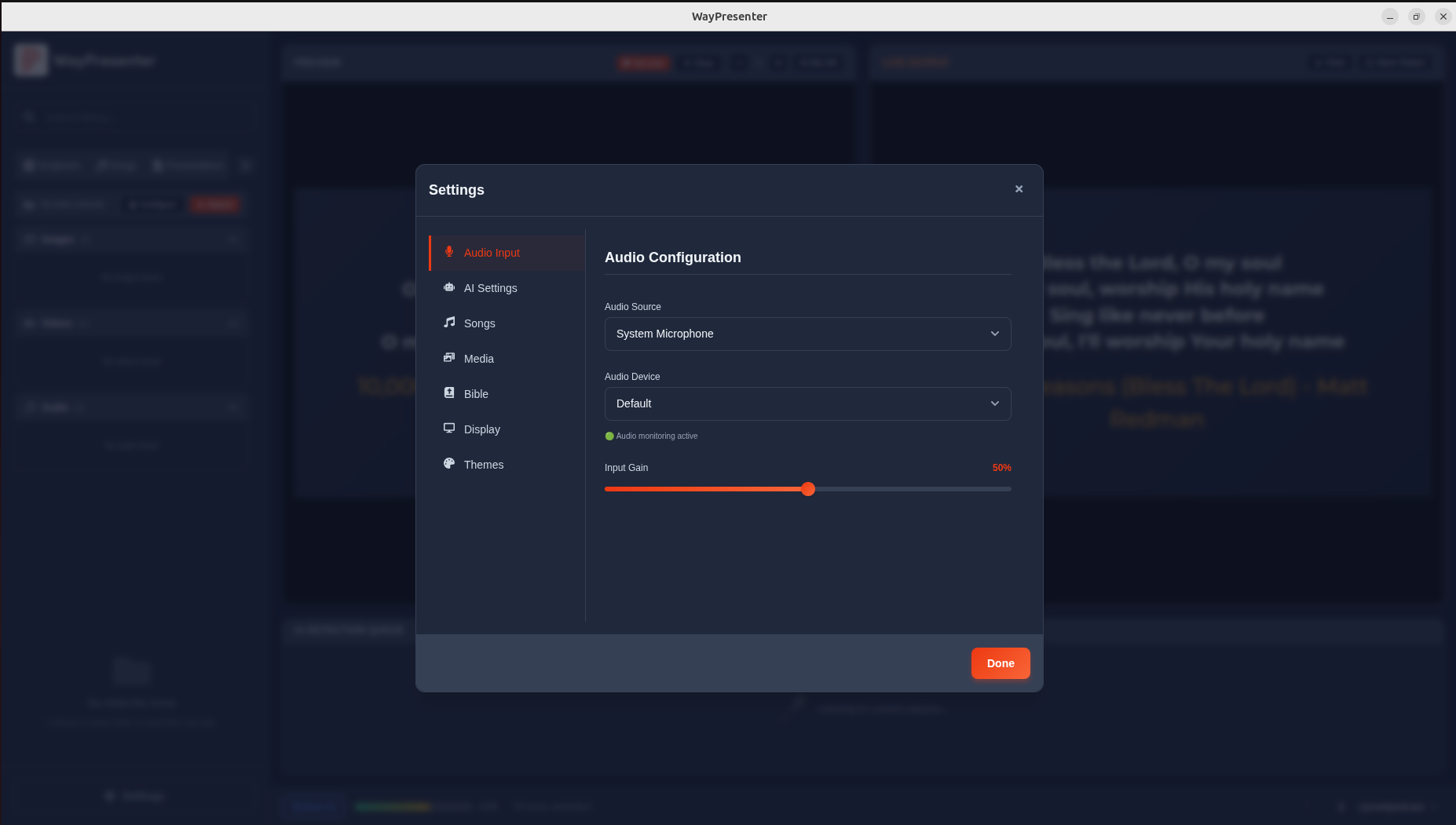
- Input device: Select audio input for AI detection
- Input gain: Adjust input sensitivity (0-100%)
- Noise gate: Filter out background noise below threshold
- Sample rate: 16kHz (default) or 44.1kHz (higher quality)
AI Detection Settings
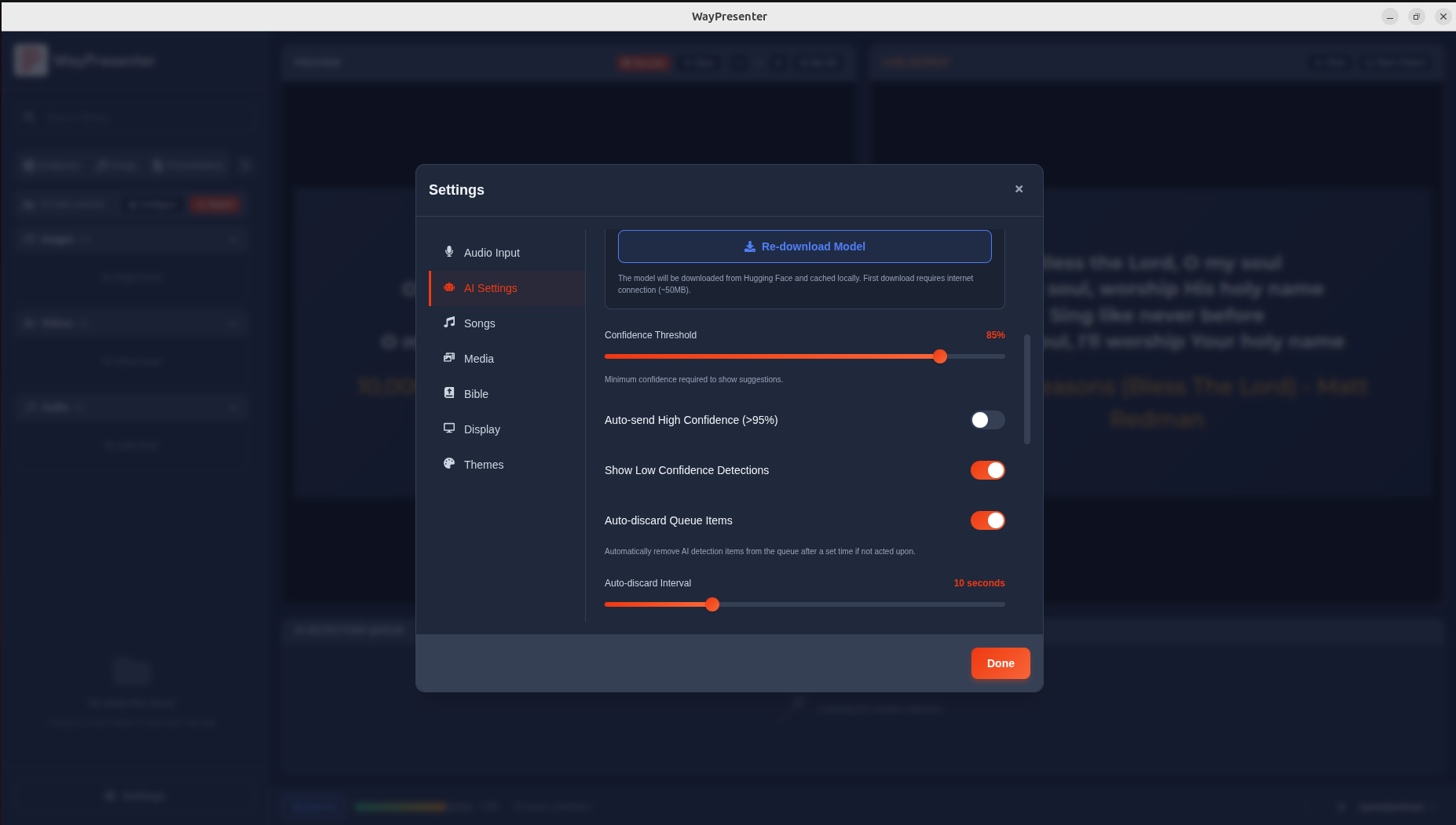
- Model quality: Fast (lighter model), Balanced, or Accurate (full model)
- Detection sensitivity: Low, Medium, or High
- Auto-display confidence threshold: Minimum confidence to auto-display (default: 90%)
- Detection language: Primary language for speech recognition
- Show confidence scores: Display confidence percentages in the queue
Bible Settings
- Default translation: Primary Bible translation
- Secondary translation: For side-by-side comparison
- Verse numbers: Show or hide verse numbers
- Red letters: Highlight words of Jesus in red
Song Settings
- Default font size: Base font size for lyrics display
- Show CCLI number: Display CCLI license number on slides
- Auto-advance: Automatically move to next section after delay
- Section labels: Show section labels (Verse 1, Chorus, etc.)
Data & Storage
- Data directory: Where WayPresenter stores its data
- Cache size: Maximum disk space for cached content
- Auto-backup: Enable automatic backups (daily, weekly, monthly)
- Backup location: Where to save backup files