Audio Not Detected
Audio Not Detected
If WayPresenter is not detecting audio from your microphone or audio interface, the AI scripture detection feature will not be able to function. This guide walks through the most common causes and how to resolve them.
Common Causes
Most audio detection issues come down to one of these problems:
- Wrong audio device selected in WayPresenter settings
- Operating system permissions blocking microphone access
- Audio drivers that are outdated, missing, or conflicting
- Hardware issues such as a muted microphone, loose cable, or unpowered audio interface
- Another application holding exclusive access to the audio device
Before diving into software troubleshooting, verify that your microphone or audio interface is physically connected, powered on, and not muted.
Step-by-Step Solutions by Platform
Windows
- Check WayPresenter audio settings: Open Settings > AI Detection and verify that the correct input device is selected from the dropdown. If you see "No devices found", continue to the next steps.
- Check Windows sound settings: Open Settings > System > Sound > Input. Confirm your microphone is listed and that the input level meter shows activity when you speak.
- Grant microphone permission: Go to Settings > Privacy & Security > Microphone. Make sure "Let apps access your microphone" is turned on and that WayPresenter is listed and allowed.
- Update audio drivers: Open Device Manager, expand Audio inputs and outputs, right-click your device, and select Update driver. Alternatively, download the latest driver from your hardware manufacturer's website.
- Restart the audio service: Open Services (search for "services" in the Start menu), find Windows Audio, right-click, and select Restart.
macOS
- Check WayPresenter audio settings: Open Settings > AI Detection and select the correct input device.
- Check System Preferences: Go to System Settings > Sound > Input. Select your microphone and check that the input level responds when you speak.
- Grant microphone permission: Go to System Settings > Privacy & Security > Microphone. Ensure WayPresenter is listed and the toggle is enabled. If WayPresenter is not listed, you may need to reinstall the application to trigger the permission prompt.
- Reset audio: If the device is not appearing, open Audio MIDI Setup (in Applications > Utilities) and verify your device is recognized by macOS.
Linux
- Check WayPresenter audio settings: Open Settings > AI Detection and select the correct input device.
- Check PulseAudio or PipeWire: Open your system's sound settings or run
pavucontrolto verify the input device is active and the volume is turned up. - Check permissions: Ensure your user account is in the
audiogroup. Rungroupsin a terminal to verify. If not, add yourself withsudo usermod -aG audio $USERand log out and back in. - Check for exclusive access: Another application may have locked the audio device. Close any other recording or conferencing software and try again.
Checking Audio Permissions
WayPresenter requires microphone access from the operating system. If the permission was denied at first launch, the application cannot access any audio input until the permission is granted manually.
On Windows and macOS, the operating system will prompt for permission the first time WayPresenter tries to access the microphone. If you dismissed or denied the prompt:
- Windows: Go to Settings > Privacy & Security > Microphone and enable access for WayPresenter.
- macOS: Go to System Settings > Privacy & Security > Microphone and toggle WayPresenter on.
After changing permissions, restart WayPresenter for the change to take effect.
Testing Audio Levels
WayPresenter includes a built-in audio test tool to help you verify that input is working.
- Open Settings > AI Detection.
- Click Test Audio.
- Speak into your microphone at a normal volume.
- Watch the level meter in the dialog. You should see green bars responding to your voice.
- If the meter shows no activity, the issue is with the device or permissions, not with WayPresenter itself.
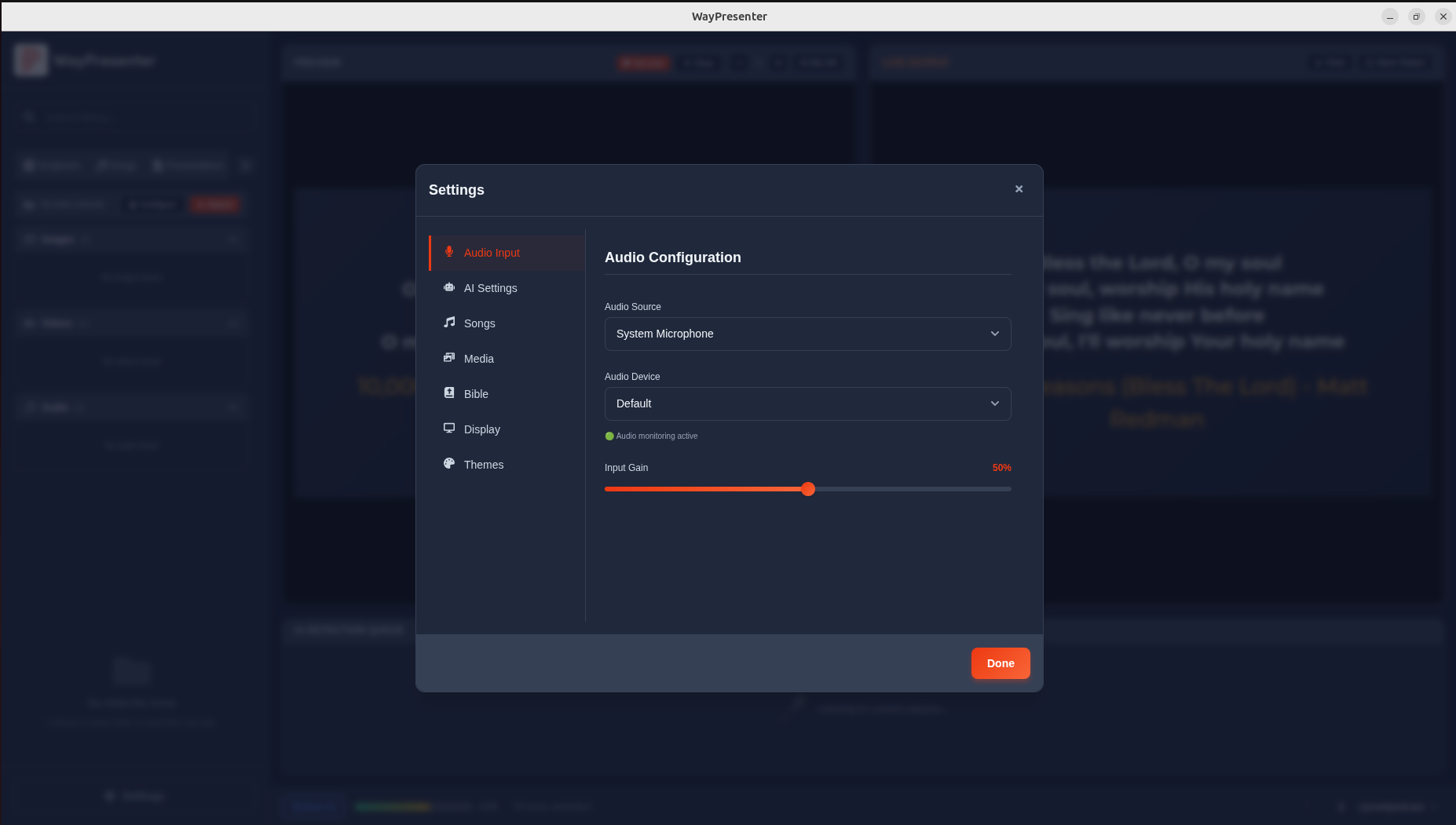
For best results with AI detection, the audio level should consistently reach the middle of the meter during normal speech. If the level is too low, increase the gain on your audio interface or adjust the input volume in your operating system settings.
When to Contact Support
If you have worked through all the steps above and audio is still not being detected, gather the following information before reaching out to support:
- Your operating system and version
- The make and model of your microphone or audio interface
- A screenshot of WayPresenter's audio settings
- A screenshot of your operating system's sound input settings
- The WayPresenter log file (found at Help > Open Log Folder)
Contact the Waystream support team at support@waystream.com or through the support form on the WayPresenter website.