Song Lyrics Display
Song Lyrics Display
WayPresenter makes it easy to display worship song lyrics on screen with professional formatting, flexible section ordering, and full CCLI license compliance.
Song Library Management
The Song Library is where all your worship songs are stored and organized.
Adding Songs
There are several ways to add songs to your library:
- Manual entry: Click New Song and type or paste lyrics directly. Add the title, author, and copyright information.
- Import from file: Import lyrics from plain text files, OpenLyrics XML, or other common formats. See the Import/Export section below for supported formats.
- Search online databases: If you have a CCLI SongSelect subscription, you can search and import songs directly from within WayPresenter.
Organizing Your Library
Keep your library tidy as it grows:
- Tags: Assign tags like "Christmas", "Easter", "Communion", or "Opening" to categorize songs by theme or usage.
- Folders: Group songs into folders for specific service series or worship sets.
- Sort and filter: Sort by title, date added, or last used. Filter by tag, author, or key.
- Archive: Move songs you no longer use to the archive. They remain searchable but stay out of your active library.
Formatting Lyrics
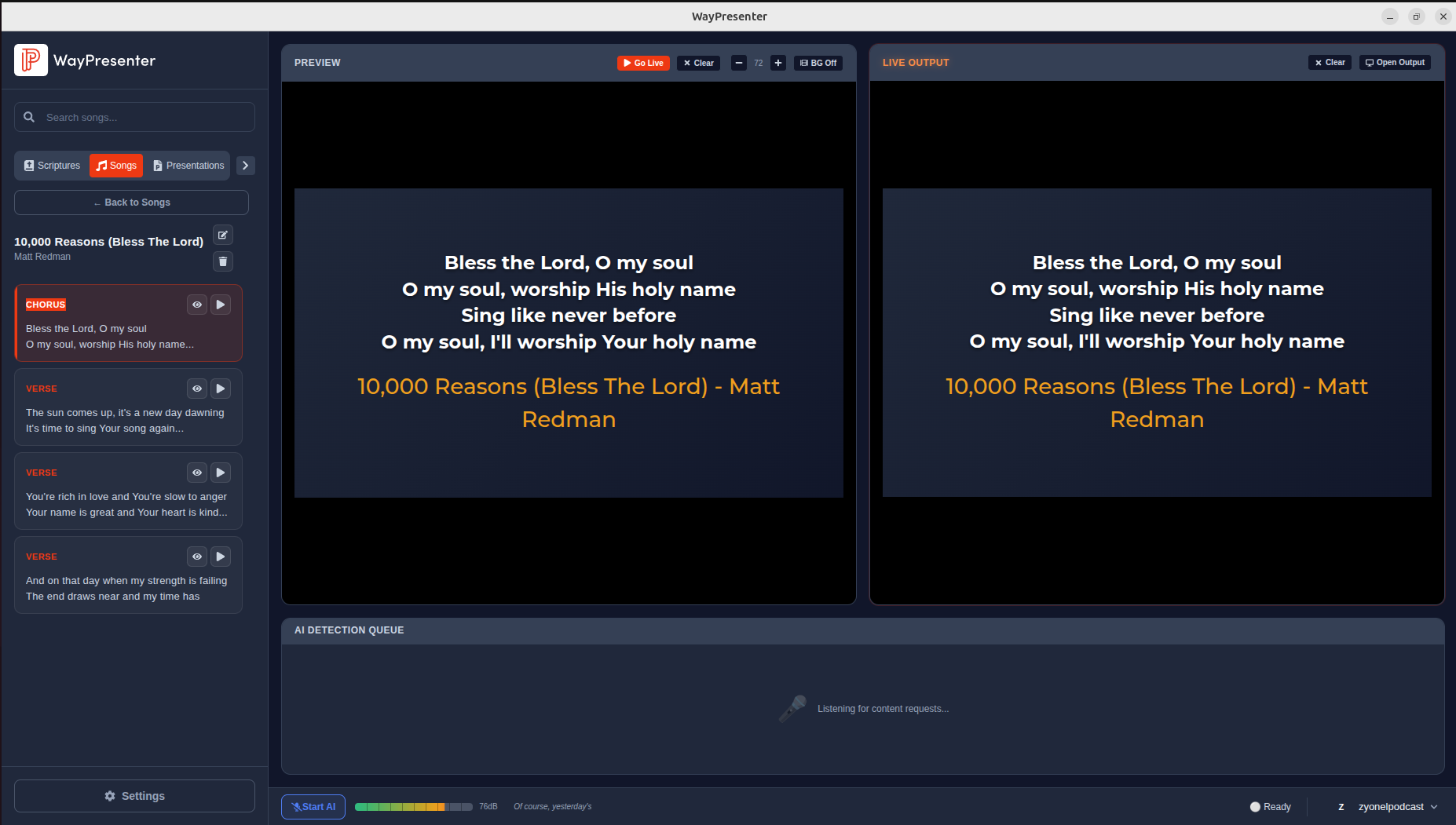
WayPresenter uses a section-based system for lyrics. Each song is divided into labeled sections that can be reordered for any arrangement.
Section Tags
Define sections with standard tags:
- Verse 1, Verse 2, Verse 3 (and so on)
- Chorus
- Pre-Chorus
- Bridge
- Tag
- Ending
- Intro (instrumental, no lyrics displayed)
Creating an Arrangement
An arrangement defines the order in which sections are displayed during a service. For example, a song might be arranged as: Verse 1, Chorus, Verse 2, Chorus, Bridge, Chorus, Ending.
- Open the song in the editor.
- Click the Arrangement tab.
- Drag sections into the desired order.
- Save the arrangement with a name (e.g., "Sunday Morning" or "Short Version").
You can create multiple arrangements for the same song and switch between them depending on the service.
Display Options
Customize how lyrics appear on screen through the display settings available in the song editor and the global theme settings.
- Font and size: Choose the typeface and size that work best for your projection setup. Larger fonts are recommended for rear-projection and large rooms.
- Text alignment: Left, center, or right alignment per section or globally.
- Line spacing: Adjust spacing between lines for readability.
- Background: Assign a specific background image or video to a song, or use the default theme background.
- Transitions: Set fade, slide, or cut transitions between slides.
- Lines per slide: Control how many lines appear on each slide. WayPresenter automatically paginates sections based on this setting.
CCLI License Integration
WayPresenter supports CCLI (Christian Copyright Licensing International) compliance to help your church stay properly licensed.
Setting Up CCLI
- Go to Settings > CCLI.
- Enter your CCLI license number.
- Enable Show CCLI Information to display the license number and song copyright on screen during worship.
Automatic Reporting
When CCLI reporting is enabled, WayPresenter tracks which songs are displayed during services. At the end of a reporting period, you can export a usage report formatted for direct submission to CCLI, saving your team from manual tracking.
Copyright Display
For each song with copyright metadata, WayPresenter can display the song title, author, and copyright notice in a configurable position on screen (typically bottom-left or bottom-right, in smaller text).
Import and Export
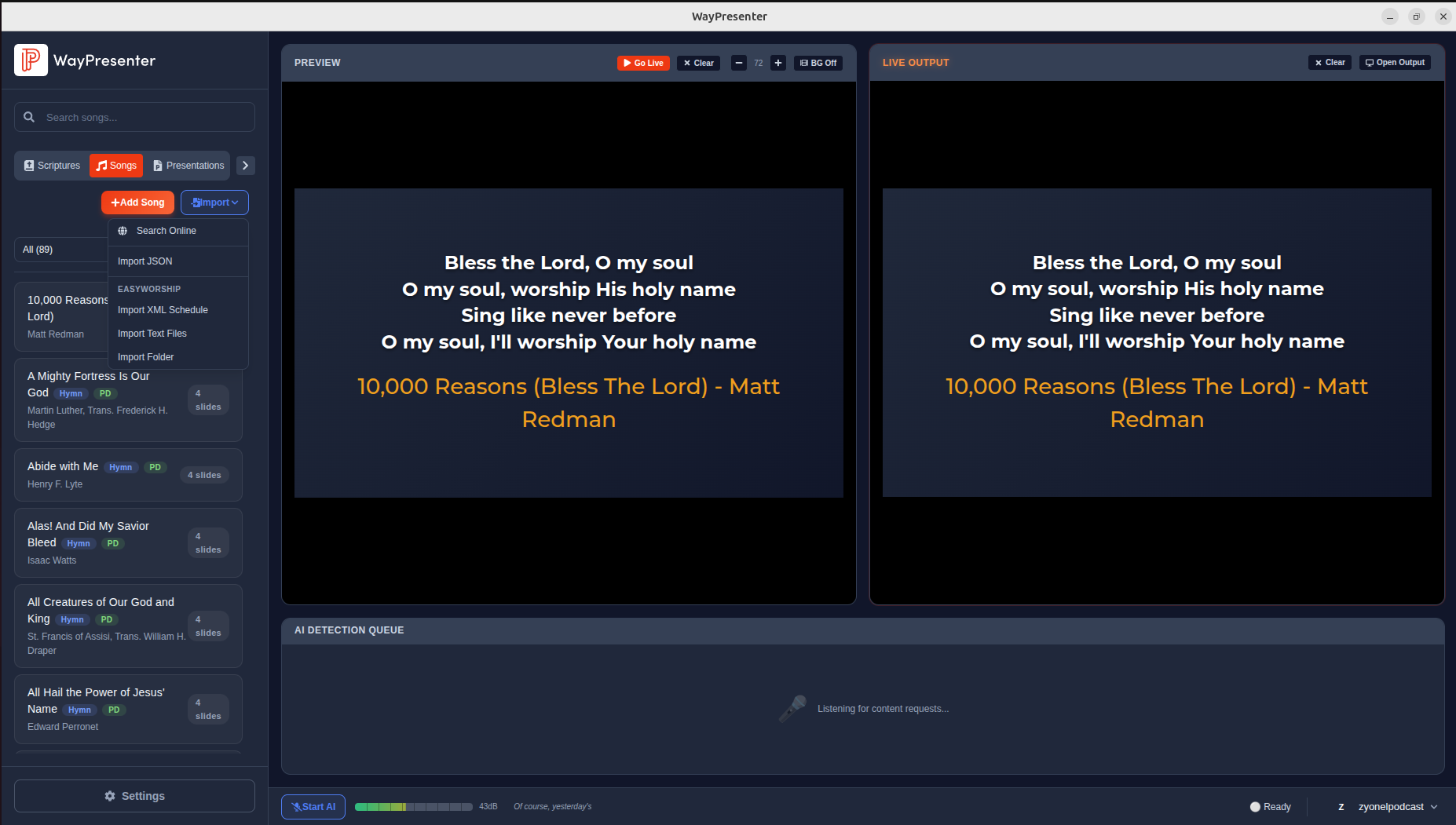
Supported Import Formats
- Plain text (
.txt) with section headers - OpenLyrics XML (
.xml) - CCLI SongSelect (direct integration)
- ChordPro (
.cho,.chopro) - ProPresenter (
.pro6,.pro7)
Exporting Songs
Export songs from your library for backup or sharing:
- Select one or more songs in the library.
- Click Export.
- Choose the output format (OpenLyrics XML or plain text).
- Select a destination folder.
Exported files include all metadata, section tags, and arrangements so they can be re-imported into another WayPresenter installation without data loss.
Search and Organize
During a live service, speed matters. WayPresenter includes several features for quickly finding and queuing songs:
- Quick search: Press
Ctrl+F(orCmd+Fon macOS) to open the quick search bar. Start typing a song title or lyric fragment and results appear instantly. - Recent songs: The sidebar shows your most recently used songs for one-click access.
- Service planner integration: Songs added to a service plan appear in order in the live panel, so the operator simply clicks "Next" to advance through the worship set.