Adding Your First Song
Adding Songs to Your Library
WayPresenter makes it easy to build your worship song library. You can add songs manually, import from files, or migrate from other software.
Method 1: Manual Entry
- Click the + button in the Song Library panel
- Enter the song title and author
- Type or paste the lyrics
- Use blank lines to separate verses, choruses, and bridges
- Label sections with tags:
[Verse 1],[Chorus],[Bridge] - Click Save
Formatting Tips
[Verse 1]
Amazing grace how sweet the sound
That saved a wretch like me
I once was lost but now am found
Was blind but now I see

[Chorus]
My chains are gone I've been set free
My God my Savior has ransomed me
Method 2: Import from File
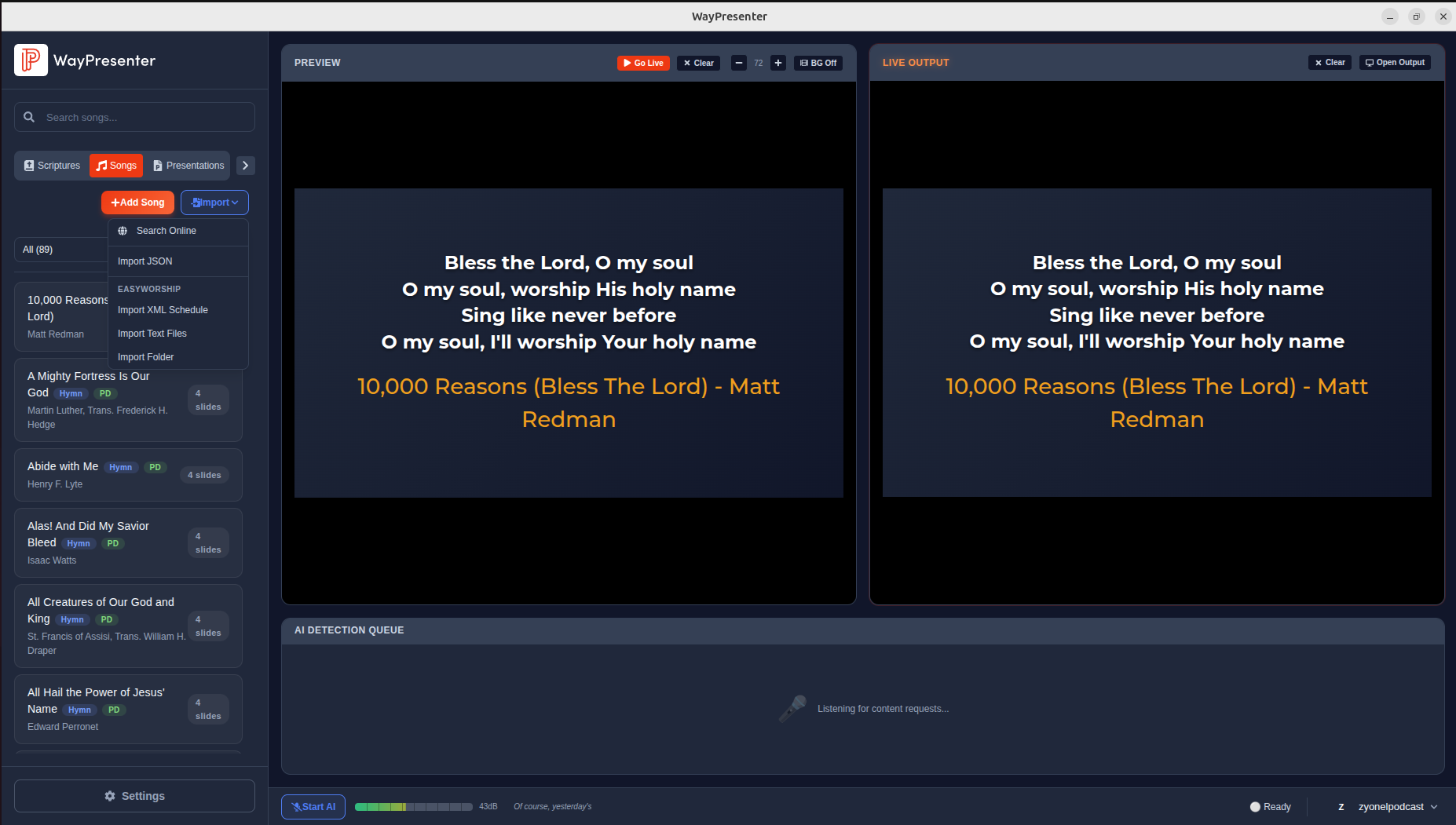
- Go to File > Import > Songs
- Select one or more
.txt,.docx, or.pptxfiles - WayPresenter will parse the lyrics and detect sections automatically
- Review the import preview and make any corrections
- Click Import
Method 3: Migrate from Other Software
WayPresenter supports importing from:
- EasyWorship: Go to File > Import > EasyWorship Database
- ProPresenter: Go to File > Import > ProPresenter
- OpenLP: Go to File > Import > OpenLP
- OpenSong: Go to File > Import > OpenSong
Organizing Your Library
- Tags: Add tags to songs for easy filtering (e.g., "praise", "hymn", "christmas")
- Categories: Organize songs into categories
- Search: Use the search bar to find songs by title, lyrics, or author
- Favorites: Star frequently used songs for quick access
Displaying Songs
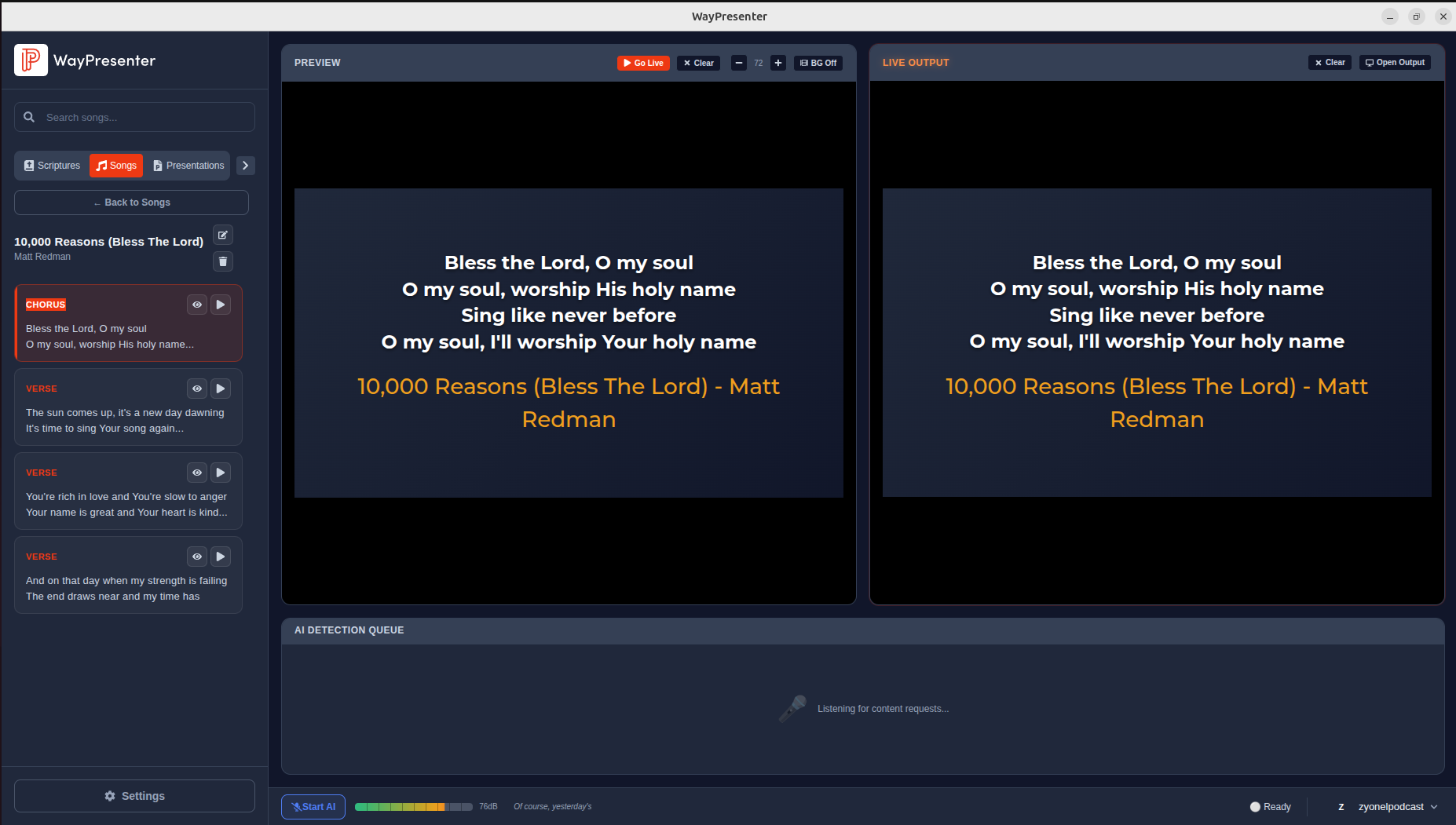
To display a song during a service:
- Find the song in your library
- Click to open it in the preview
- Click Go Live or press Enter to send to the display
- Use arrow keys or click to advance through sections
Next Steps
Learn more about Song Lyrics Display features, including formatting options and CCLI integration.