Displaying Scriptures
Displaying Scriptures
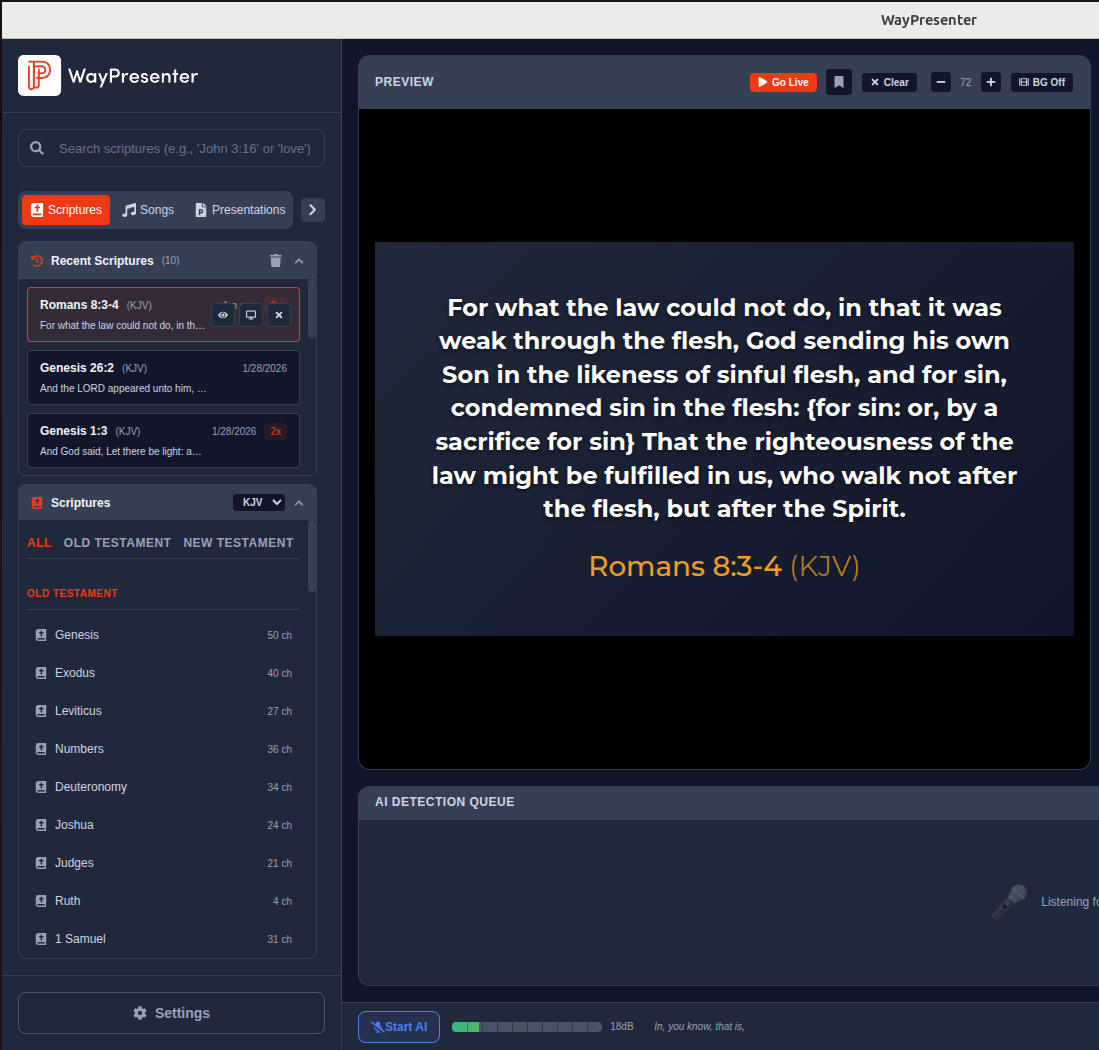
WayPresenter offers multiple ways to display Bible scriptures during your services — from manual search to AI-powered automatic detection.
Manual Scripture Search
- Click the Bible tab in the left panel
- Type a reference (e.g., "John 3:16") in the search bar
- Select your preferred translation from the dropdown
- The verse(s) appear in the preview pane
- Click Go Live to display on screen
Searching Tips
- Type full references: "John 3:16"
- Use ranges: "Psalm 23:1-6"
- Search by keyword: "love one another"
- Multiple verses: "Romans 8:28-30"
AI Scripture Detection
The most powerful way to display scriptures is with AI detection:
- Enable AI detection by clicking the AI button in the toolbar
- As the pastor mentions scriptures during the sermon, they appear in the AI Queue
- Review each detection — a green confidence indicator means high accuracy
- Click Go Live on any detection to send it to the display instantly
For setup details, see AI Scripture Detection.
Scripture Display Options
Formatting
- Font size: Adjust for readability from the back of the room
- Translation label: Show or hide the translation name
- Reference position: Display reference above or below the text
- Line breaks: Choose between flowing text or verse-per-line
Themes
Apply visual themes to your scripture display:
- Go to Settings > Themes
- Choose from built-in themes or create your own
- Set different themes for scriptures vs. songs if desired
Planning Ahead
For planned scripture readings, you can pre-load verses:
- Open the Service Plan tab
- Click Add Scripture
- Enter the references for today's readings
- Arrange them in order
- During the service, click through them in sequence
Next Steps
- Explore the Bible Library for managing translations
- Set up AI Scripture Detection for automatic display
- Customize themes with Theme Customization