Configuring Audio Input
Why Audio Configuration Matters
WayPresenter's AI scripture detection relies on clear audio input. The quality of your audio source directly affects detection accuracy. A properly configured audio input can achieve 90%+ accuracy.
Audio Source Options
Option 1: Direct Soundboard Feed (Recommended)
The best results come from a direct audio feed from your church's sound system:
- Connect an auxiliary output from your soundboard to your computer
- Use a 3.5mm, USB, or audio interface connection
- Set the output level to line level (not mic level)
Advantages: Cleanest audio, no background noise, highest accuracy.
Option 2: USB Microphone
If a direct soundboard connection isn't available:
- Place a USB microphone near the pulpit or speaker
- Position it 2-4 feet from the speaker for best results
- Avoid placing it near speakers to prevent feedback
Advantages: Easy setup, portable, no soundboard access needed.
Option 3: System Audio
Capture audio from your computer's sound output:
- Go to Settings > Audio > Source
- Select System Audio from the dropdown
- Play audio through your computer
Best for: Testing, online sermon playback, practice sessions.
Configuring in WayPresenter
- Open Settings (gear icon in the top bar)
- Navigate to Audio tab
- Select your audio source from the Input Device dropdown
- Adjust the Input Level slider until the meter shows green during normal speech
- Click Test to verify the AI can hear and process audio
- Click Save
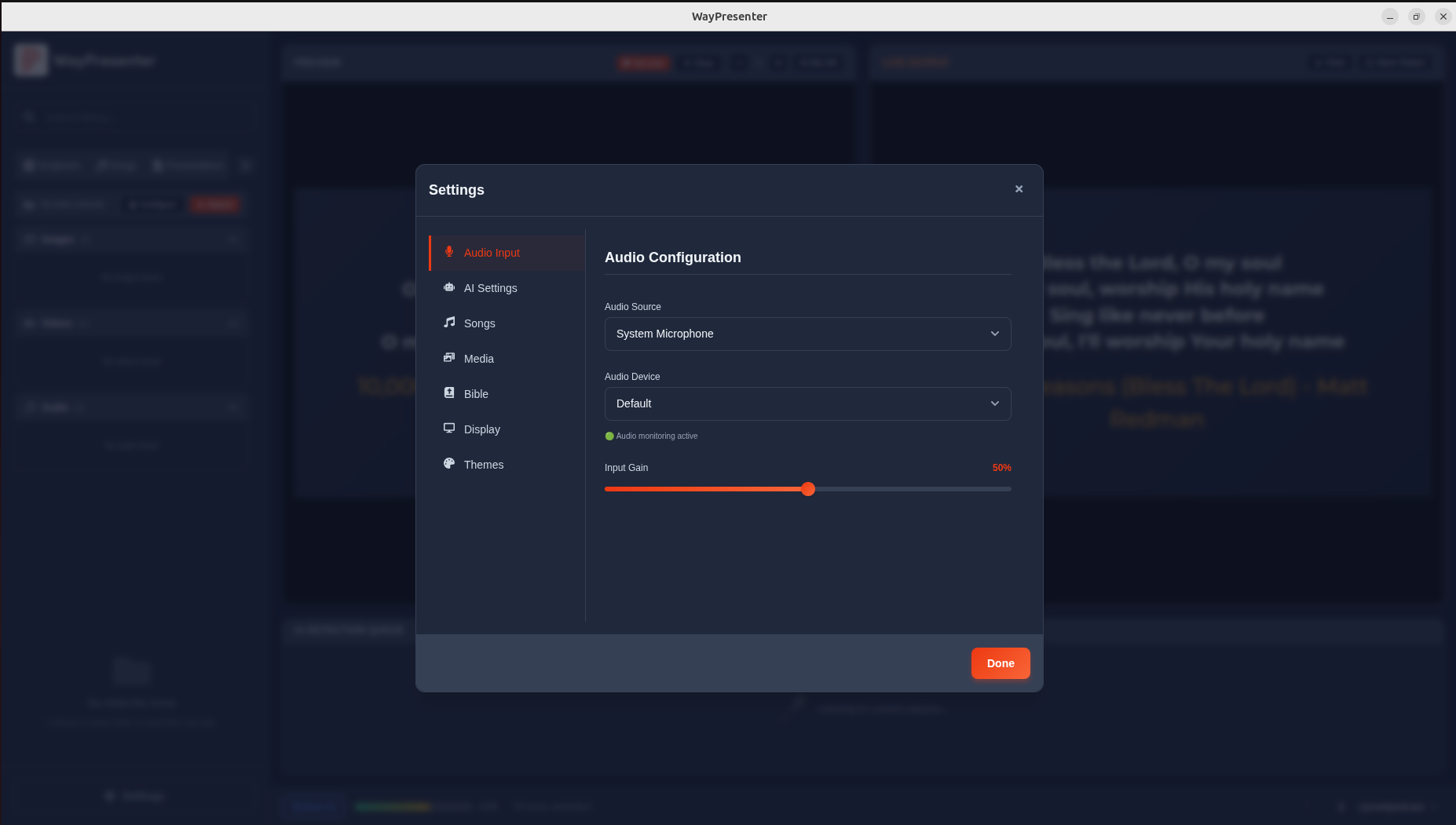
Optimizing Audio Levels
- The audio meter should primarily stay in the green zone during speech
- Occasional peaks into yellow are fine
- Avoid red — this means clipping, which reduces accuracy
- If audio is too quiet, increase the input gain
- If audio is too loud, reduce the input gain or use an attenuator
Troubleshooting Audio
If WayPresenter isn't detecting audio:
- Check that the correct input device is selected
- Verify the audio cable is properly connected
- Check system audio permissions (especially on macOS)
- Try restarting WayPresenter after connecting your audio device
- See Audio Not Detected for more help
Next Steps
With audio configured, you're ready to use AI scripture detection. Learn more in AI Scripture Detection.