AI Not Recognizing Verses
AI Not Recognizing Verses
When the AI scripture detection is enabled but failing to identify verse references — or identifying them incorrectly — there are several areas to investigate. This guide covers the most effective troubleshooting steps in order of likelihood.
Check Audio Quality First
The most common reason for poor verse recognition is low-quality audio input. The AI model needs clear speech to produce accurate transcriptions.
Quick Audio Check
- Open Settings > AI Detection and click Test Audio.
- Speak a clear verse reference such as "John chapter three verse sixteen."
- Watch both the level meter and the live transcription preview.
If the level meter barely moves, the microphone volume is too low. If the transcription preview shows garbled or incomplete text, the audio quality is insufficient.
Improving Audio Quality
- Use a dedicated microphone: A lavalier or podium microphone pointed at the speaker produces much better results than a room microphone picking up ambient sound.
- Reduce the distance: The closer the microphone is to the speaker, the better the signal-to-noise ratio.
- Use a direct audio feed: If your sound system has a line-out or aux send, route it directly into your computer's audio interface. This bypasses room acoustics entirely and provides the cleanest possible signal.
- Avoid wireless interference: If using a wireless microphone system, ensure it is on a clean channel with no dropouts.
Adjust Sensitivity Settings
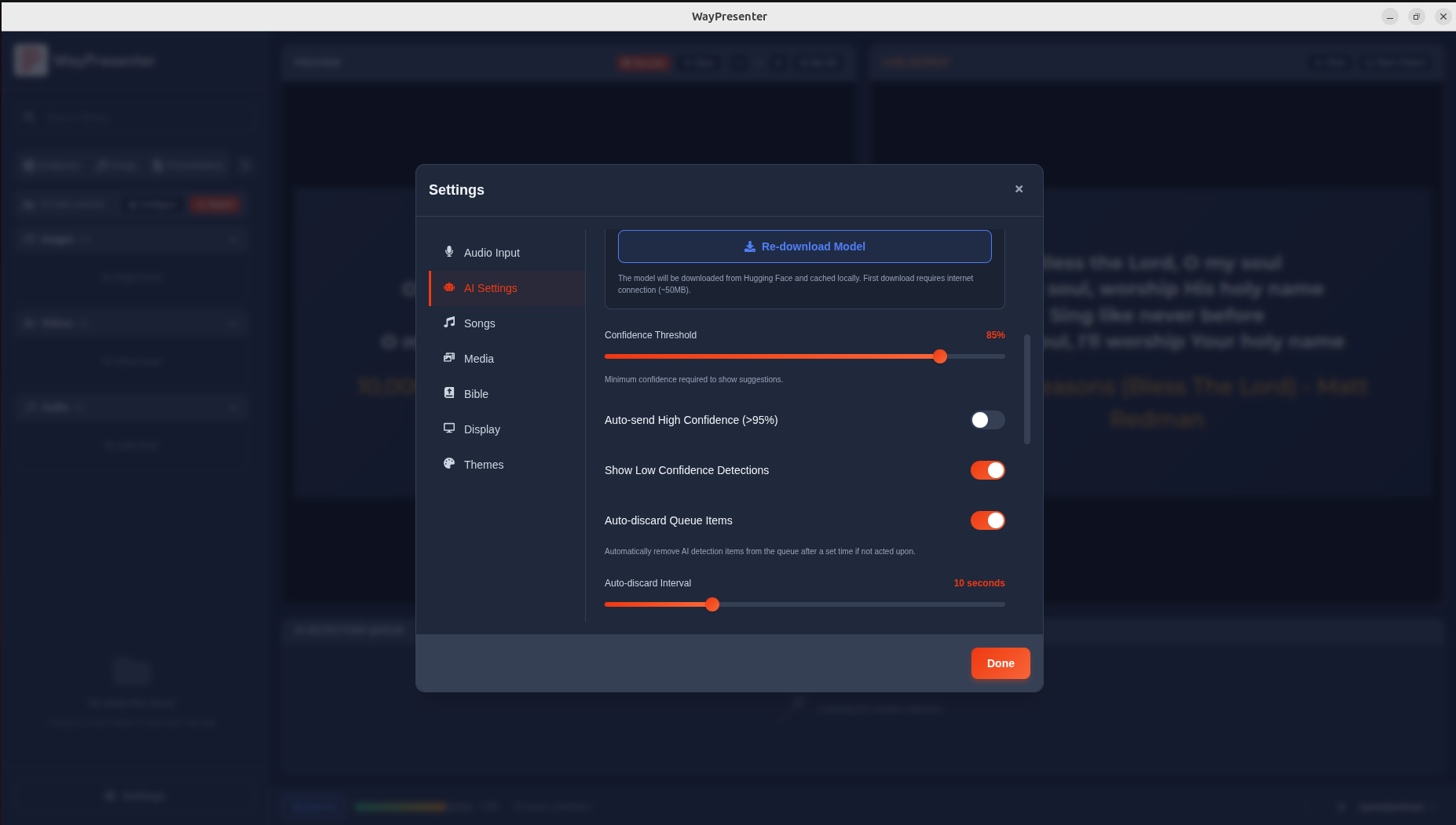
The detection sensitivity controls how aggressively WayPresenter looks for verse references in the transcription.
- Open Settings > AI Detection > Sensitivity.
- Try increasing the Detection sensitivity slider by one or two increments.
- Lower the Minimum confidence threshold temporarily (e.g., from 75% to 65%) to see if verses are being detected but filtered out due to low confidence.
- Increase the Context window if your speaker tends to mention the book name well before the chapter and verse numbers.
After adjusting, test with a few spoken verse references and observe how the detection queue responds.
Common Issues
Background Noise
Background noise — from HVAC systems, congregational movement, live instruments, or open windows — degrades transcription accuracy significantly.
- Reduce ambient noise where possible during the spoken portion of the service.
- Use a directional microphone that rejects off-axis sound.
- If using a room microphone, consider a noise gate on your mixer to cut the signal when the speaker is not talking.
Accent Variations
The Whisper model handles a wide range of accents well, but some speech patterns may require adjustment.
- Speak verse references clearly and at a moderate pace. Rapid or heavily accented speech is harder to transcribe.
- Use the feedback system (confirm, correct, dismiss) to train the local model over time. WayPresenter learns from corrections specific to your speaker.
- If a particular speaker is consistently misrecognized, try adjusting the Language model setting under Settings > AI Detection > Advanced to better match the speaker's regional dialect.
Speaking Speed
If the speaker moves quickly through multiple verse references in succession, the AI may miss some of them.
- Increase the Context window setting to give the model more time to process consecutive references.
- Consider switching to Manual approval mode in the detection queue so that each verse is held until the operator confirms it, giving the system time to catch up.
Improving Accuracy With Feedback
WayPresenter's detection improves over time when you provide feedback on its results.
How Feedback Works
- Confirm a correct detection by clicking the checkmark icon in the queue. This reinforces the pattern.
- Correct a wrong detection by clicking the edit icon and selecting the right verse. This teaches the model about common mishearings.
- Dismiss a false positive by clicking the X icon. This reduces the likelihood of similar false triggers.
After providing feedback for several services, you should notice a measurable improvement in accuracy for your specific setup. The feedback data is stored locally and applies only to your installation.

Resetting the AI Model
If the detection system seems to have degraded after extended use — perhaps due to a large number of incorrect feedback entries — you can reset the model to its default state.
- Open Settings > AI Detection > Advanced.
- Click Reset Detection Model.
- Confirm the reset when prompted.
This clears all learned feedback data and returns the model to its original configuration. You will need to rebuild accuracy through feedback again, so use this option only as a last resort.
Checking Resource Usage
The AI detection engine requires meaningful CPU resources. If your computer is under heavy load, the model may fall behind, resulting in missed or delayed detections.
Monitoring Resources
- Open your operating system's task manager or activity monitor.
- Look at CPU usage while AI detection is active. WayPresenter's AI engine typically uses 15-30% of a modern CPU.
- If total CPU usage is above 90%, other applications may be starving the detection engine.
Reducing Load
- Close unnecessary applications during the service.
- In Settings > AI Detection > Advanced, switch the model quality from High to Standard or Light. Lower-quality models use less CPU at the cost of some accuracy.
- Ensure your computer meets the minimum system requirements for AI detection: a modern multi-core processor (4 cores or more) and at least 8 GB of RAM.
If resource constraints are a persistent issue, consider dedicating a separate machine to run WayPresenter, or upgrading your hardware.