Theme Customization
Theme Customization
Themes in WayPresenter control the visual appearance of everything displayed on screen — fonts, colors, backgrounds, text positioning, and transitions. A well-designed theme gives your services a polished, consistent look.
Built-In Themes
WayPresenter ships with a selection of professionally designed themes that are ready to use immediately.
Included Themes
- Classic — clean white text on a dark background, suitable for any setting
- Modern — bold sans-serif typography with a contemporary feel
- Warm — earthy tones with soft backgrounds, ideal for intimate worship settings
- High Contrast — maximum readability with large text and strong contrast, designed for accessibility
- Minimal — stripped-down design that puts the focus entirely on the text
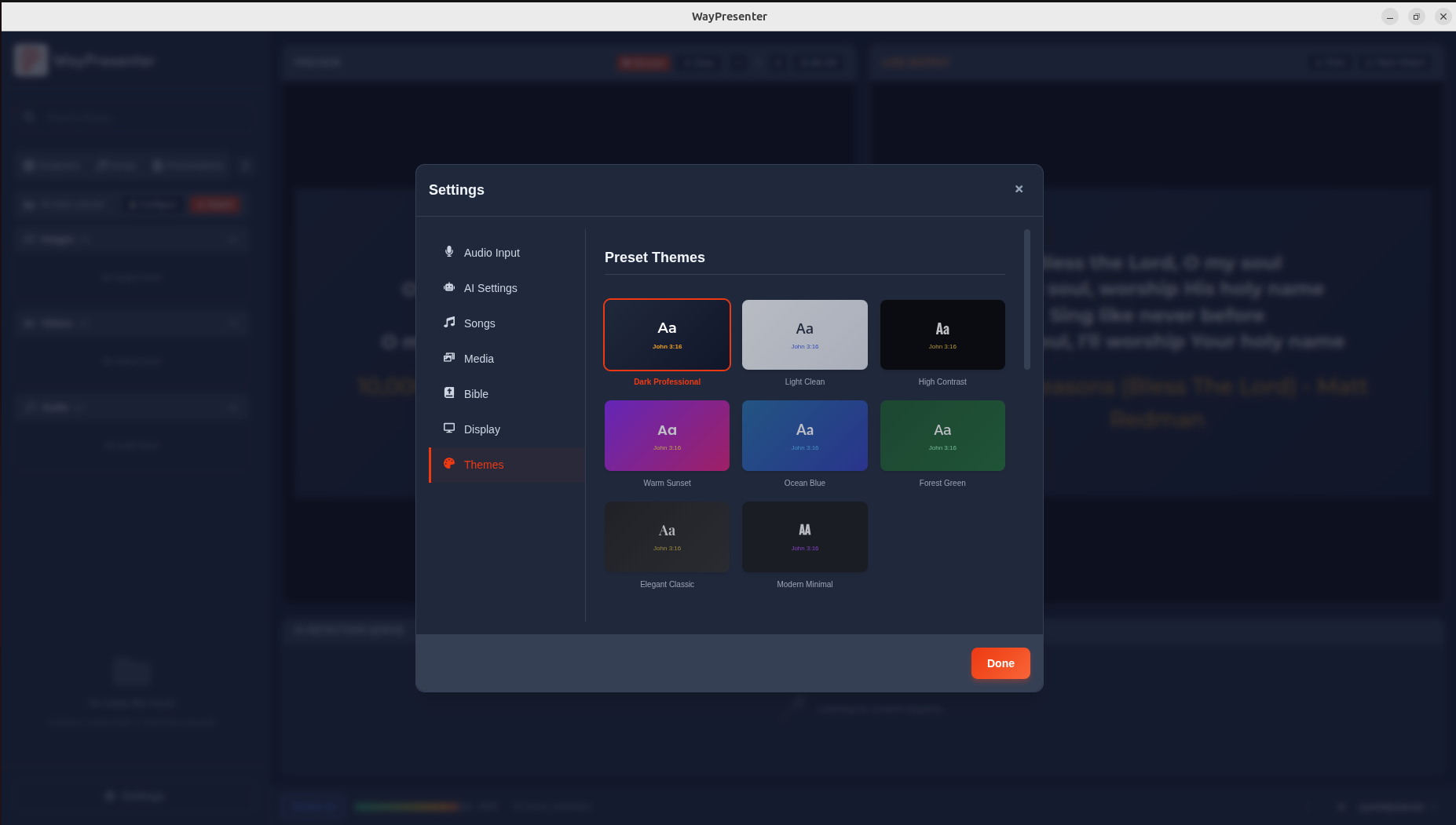
To apply a built-in theme:
- Go to Settings > Themes.
- Browse the available themes in the gallery.
- Click a theme to preview it on the right side of the screen.
- Click Apply to set it as your active theme.
You can switch themes at any time, even during a live service, though it is best practice to finalize your theme before the service begins.
Modifying Themes
Every built-in theme can be customized to match your church's branding. When you modify a built-in theme, WayPresenter creates a copy so the original remains available.
Fonts
WayPresenter includes a library of built-in fonts and also supports loading custom font files (.ttf, .otf, .woff2).
- Primary font: Used for main content like scripture text and song lyrics.
- Secondary font: Used for headings, titles, and labels.
- Accent font: Optional font for decorative elements like verse references or section tags.
Adjust font sizes, weight (regular, bold, light), and letter spacing in the Typography section of the theme editor.
Colors
The color settings control text color, shadow color, and overlay tints.
- Text color: The primary text color. White is the most common choice for projected text.
- Text shadow: Adds a shadow behind text to improve readability over complex backgrounds. Configure the shadow color, blur radius, and offset.
- Background overlay: Applies a semi-transparent color overlay on top of the background image or video. Useful for darkening a bright background to make text readable.
- Accent color: Used for highlights, verse references, and section labels.
Backgrounds
Set a default background for the theme. This background is used whenever a slide or content item does not have its own background assigned.
- Choose a static image from your Media Library.
- Choose a motion background (looping video) for a dynamic look.
- Set a solid color if you prefer simplicity.
Creating a Theme From Scratch
If the built-in themes do not match your needs, you can build a theme from the ground up.
- Go to Settings > Themes.
- Click New Theme.
- Enter a name for your theme (e.g., "Easter 2026" or "Sunday Evening").
- Configure each section of the theme editor:
- Typography: Select fonts, sizes, weights, and spacing.
- Colors: Set text, shadow, overlay, and accent colors.
- Background: Choose a default background.
- Layout: Set text alignment, margins, and positioning zones.
- Transitions: Choose how slides animate in and out (fade, slide, dissolve, or cut).
- Use the Preview panel on the right to see your changes in real time with sample content.
- Click Save when you are satisfied with the result.
Layout Options
The layout section lets you control where text appears on screen and how it is sized.
- Text area: Define the region where text is rendered. By default, text fills most of the screen with comfortable margins. You can constrain it to a smaller area if your background has design elements you want to keep visible.
- Alignment: Set horizontal alignment (left, center, right) and vertical alignment (top, middle, bottom).
- Margins: Adjust the spacing between text and the edges of the text area.
- Maximum lines: Set how many lines of text can appear before pagination occurs.
Per-Content-Type Themes
WayPresenter allows you to assign different theme settings for different content types. For example, you might want scripture to appear in a serif font on a dark blue background while song lyrics use a sans-serif font on a motion background.
Configurable Content Types
- Scripture: Theme for Bible verse display.
- Song Lyrics: Theme for worship song lyrics.
- Announcements: Theme for announcement slides.
- Custom Slides: Theme for free-form text and image slides.
Setting Per-Type Themes
- Open the theme editor for your active theme.
- Click the Content Types tab.
- Select the content type you want to customize.
- Override any setting (fonts, colors, background, layout) for that content type.
- Settings you do not override will inherit from the base theme.
This approach lets you maintain a consistent overall look while tailoring the presentation to each type of content.
Sharing Themes
Themes can be exported and shared with other WayPresenter installations, making it easy to maintain consistency across campuses or share designs with other churches.
Exporting a Theme
- Go to Settings > Themes.
- Right-click the theme you want to share and select Export.
- Choose a destination folder. The theme is saved as a
.wpthemefile that includes all settings, custom fonts, and embedded background images.
Importing a Theme
- Go to Settings > Themes.
- Click Import Theme.
- Select the
.wpthemefile. - The theme appears in your gallery and is ready to use.
Imported themes can be further modified to fit your specific needs without affecting the original file.